MFA for a Small Business: Which Kind, Where to Start, and How to Get Buy-In
Multi-factor authentication means a stolen password alone is not enough. Which kind to choose (app, SMS or security key), which accounts to protect first, and how to handle pushback.
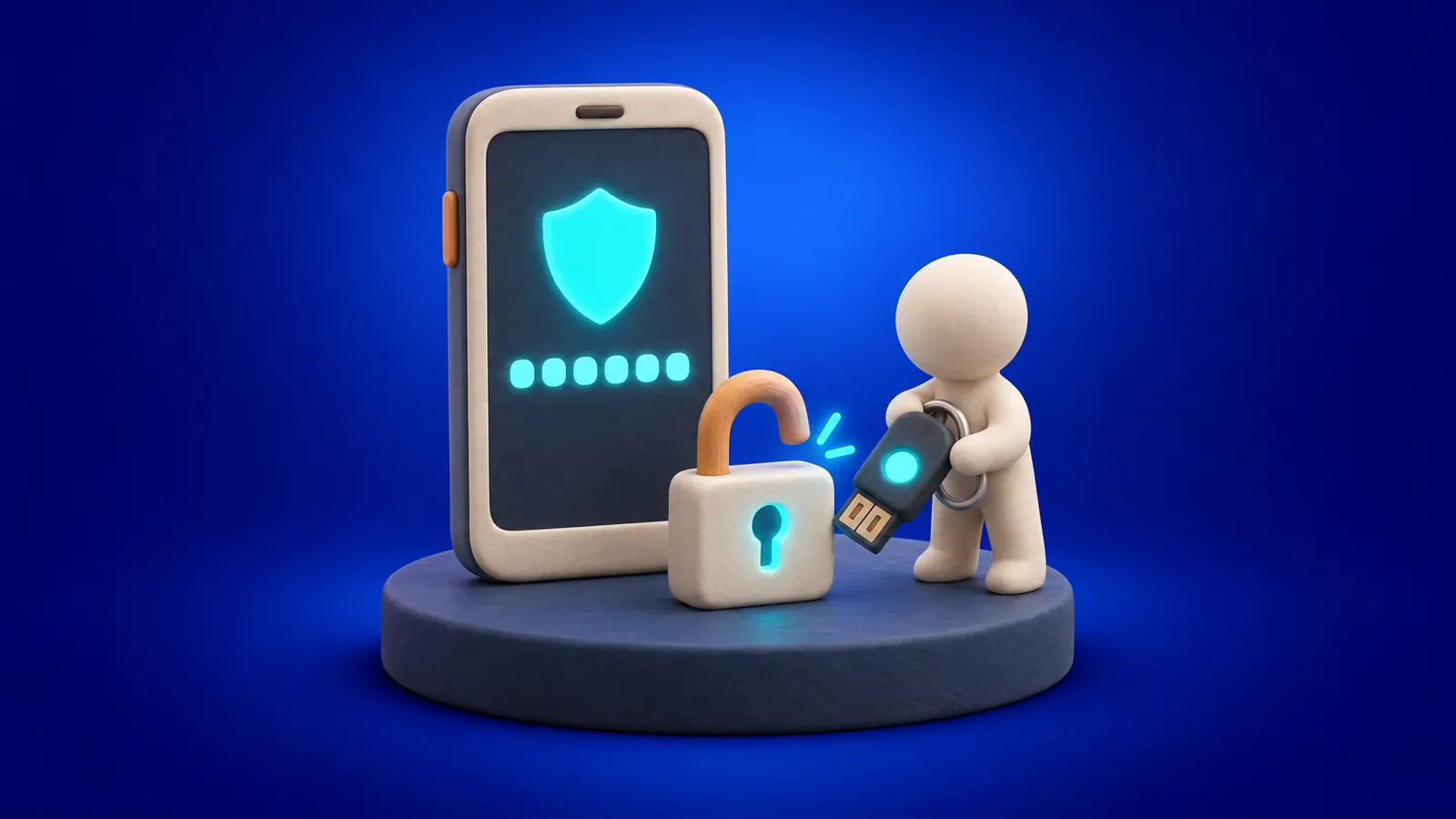
Passwords get stolen all the time: through phishing pages, reused passwords from old breaches, or malware on a home computer. Multi-factor authentication (MFA) means a stolen password alone is no longer enough to get in. Someone also needs something you have, usually your phone or a small security key.
For a small business, it is one of the most effective security steps you can take, and one of the least expensive. Here is how to roll it out without a revolt.
The main kinds of MFA, from weakest to strongest
- Text message (SMS) codes Much better than nothing, and easy for everyone. But codes can be intercepted, and attackers can sometimes talk a phone carrier into moving your number to their SIM card.
- Authenticator app codes or push prompts Apps like Microsoft Authenticator or Google Authenticator. Stronger than SMS and free. Use push prompts that ask you to type a number shown on screen, rather than a simple Approve button.
- Passkeys and hardware security keys A small USB or NFC key, or a passkey stored on your phone or computer. These are the strongest option because they will not work on a fake login page at all.
For most teams, an authenticator app is the right default. Add security keys or passkeys for administrators, owners and anyone who handles money.
Where to turn it on first
You do not have to do everything at once. Start where a stolen password would hurt most:
- Email Microsoft 365 or Google Workspace. Email is the key to resetting almost every other account.
- Admin accounts Anyone who can create users, change settings or approve access.
- Banking and payroll Including any payment platforms and accounting software.
- Remote access VPNs, remote desktop tools and cloud file access.
- Your domain registrar and website Losing these can take your email and site offline.
- Password manager It holds everything else, so protect it well.
After those, work through the rest: line-of-business apps, social media accounts, vendor portals and anything else with company data in it.

Watch out for MFA fatigue
One common trick is to send a flood of sign-in prompts in the hope that someone taps Approve just to make them stop. Teach everyone a simple rule: if you get a prompt you did not trigger, deny it and tell IT. Number matching, where you must type the number shown on screen, makes this attack far harder.
Handling pushback
Most resistance comes from inconvenience, not disagreement. A few things help:
- Explain the why One short meeting about how accounts actually get taken over does more than any policy memo.
- Make it easy Set it up with each person rather than sending instructions. Let devices be remembered on trusted computers so prompts are not constant.
- Offer an option for the phone-shy Someone who does not want a work app on a personal phone can use a hardware security key instead.
- Start with leadership When owners and managers go first, nobody can say it is just for them.
- Set a firm date Give a week or two of notice, then make it required. Optional MFA rarely gets turned on.
Plan for lost phones
Someone will drop their phone in a lake. Decide in advance how a person proves who they are to get back in, and make sure that process cannot be used by an attacker who simply calls and asks. Register a backup method for each person, and keep emergency admin accounts protected and stored safely.
MFA is a strong lock, not the whole building
MFA does a lot of heavy lifting, but it works best alongside good passwords, a password manager, security training and keeping devices updated. Think of it as the step that turns a stolen password from a disaster into a non-event.
If you are not sure which of your accounts still rely on a password alone, we can help you find them.