AI guide for business

AI for Business: Where It Stands Right Now

The AI tools businesses actually use, what is new this year, and how to start without putting your data at risk. Written in plain English by the team that sets these tools up every day.

A small white helper figure working at a laptop, with chat bubbles, a document, a calendar and a check mark floating above it.
2026 so far

What Changed in 2026

01

From Answers to Finished Work

The big assistants no longer stop at answering questions. You can hand them a task with a clear outcome, such as a brief, a slide deck or an analysis, and come back to something ready to review.

02

Built Into the Apps You Already Use

Microsoft Copilot now takes multi-step actions directly in Word, Excel and PowerPoint. Google’s Gemini works inside Gmail, Docs, Sheets, Drive and Calendar.

03

Personal Agents You Can Text

A new kind of assistant works for you over text, email or phone. It can browse, fill in forms, book and buy, and it checks with you before anything important.

How clicrite helps: We help you choose the tools that fit how your team already works, and set them up on company accounts instead of personal ones.

Where most businesses use AI

The Everyday Basics

Most businesses get the biggest benefit from a handful of everyday uses. None of them needs technical skills.

A phone and a laptop each showing a chat conversation, with a microphone and a document beside them.
The foundation

AI Assistants

ChatGPT, Claude, Microsoft Copilot and Google Gemini are the four big general-purpose assistants. You talk to them in plain language: ask a question, hand off a task, or upload a file and ask about it.

  • Upload a contract or report and get a plain-English summary.
  • Ask for a first draft, a checklist or a plan, then refine it in conversation.
  • Speak instead of typing: all of them take voice.
  • On Microsoft 365, Copilot is built into Word, Excel, Outlook and Teams. On Google Workspace, Gemini is built into Gmail, Docs, Sheets and Meet.

Good to know: Start with the assistant that matches the software you already pay for. Add a second one only if your team needs it.

How clicrite helps: We handle the licenses, sign-in and permissions, so each person’s assistant only sees what that person should.


An open envelope with a letter, a stack of documents, a pen and a magnifying glass.
Productivity

Writing, Email and Research

This is where most people feel the time savings first. AI is a fast first-draft writer and a patient research partner.

  • Emails, proposals and reports drafted from a few lines of notes.
  • Job posts, social posts, ad copy and internal announcements in your tone.
  • Deep research modes that read many sources and come back with a summary and links you can check.

Good to know: AI still makes mistakes. Check names, numbers and facts before anything goes to a client, and have a person review anything legal or financial.

How clicrite helps: We run short, practical training so your team knows what to hand to AI and what to double-check.

A laptop showing a video call with four people, a checklist rising from a notepad and a small microphone.
Meetings

Meeting Notes and Follow-Ups

AI notetakers join your calls, write the summary and the action items, and let you ask questions about the meeting afterward.

  • Microsoft Teams: Copilot handles meeting recaps natively.
  • Google Meet: Gemini takes notes inside Meet.
  • Works with any platform: Fathom, Otter and Fireflies are popular dedicated notetakers.

Good to know: Tell people when a meeting is being recorded, and check what your clients and your industry rules expect.

How clicrite helps: We turn on the meeting features in Teams or Google Meet and set who can record and where recordings are kept.

A spreadsheet with bar and line charts rising out of it and an arrow pointing up.
Data

Spreadsheets and Data

You no longer need formulas or pivot tables to get answers out of a spreadsheet. Upload it, or open it in Excel or Sheets, and ask.

  • “Which customers haven’t ordered in 90 days?” in plain language.
  • Charts, summaries and cleaned-up columns in a few steps.
  • Copilot in Excel can now carry out multi-step changes in the workbook while you stay in control.

Good to know: Give AI the right file, not your whole drive. Clean up old shared folders first.

How clicrite helps: We tidy up file sharing and permissions before AI is switched on, so it can only reach the right data.

A presentation easel, a paint palette, a picture frame and a megaphone.
Marketing

Marketing Content and Visuals

AI is a full marketing assistant now, not just a writing helper.

  • Social posts, blog drafts and email campaigns in your brand voice.
  • Images on demand: ChatGPT and Gemini both create pictures from a description.
  • Slide decks with Gamma, and design and layouts with Canva’s AI tools.

Good to know: Keep your logo, colors and approved wording in one place, and give them to the AI every time, so everything stays on brand.

How clicrite helps: We connect these tools to company accounts, so your files and brand assets stay with the business, not with one employee.

Going further

More Advanced Uses

Fewer businesses use these yet, but this is where AI moves from helping you work to doing the work.

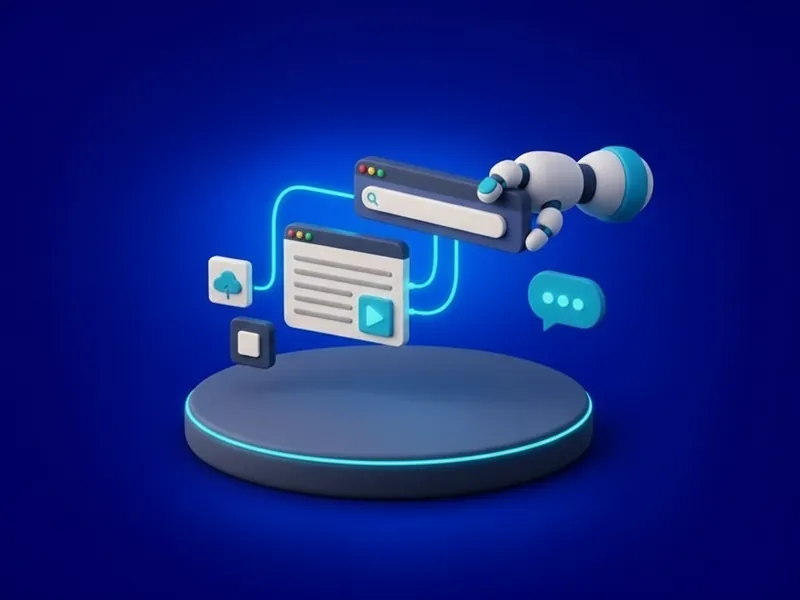
A website being assembled from blocks by a small robotic arm, beside a chat bubble.
Building

Websites and Apps by Chat

You can now describe a website or a simple app and have AI build it, then improve it by chatting. Lovable, Base44 and Figma Make are leading options.

  • Simple business websites and landing pages.
  • Internal tools that replace messy spreadsheets.
  • Dashboards and client portals.

Good to know: It takes some back-and-forth to get right. Anything that handles customer data, payments or logins still needs proper security, backups and someone to look after it.

How clicrite helps: We review AI-built sites and tools before they go live: domains, hosting, sign-ins, backups and who has access.

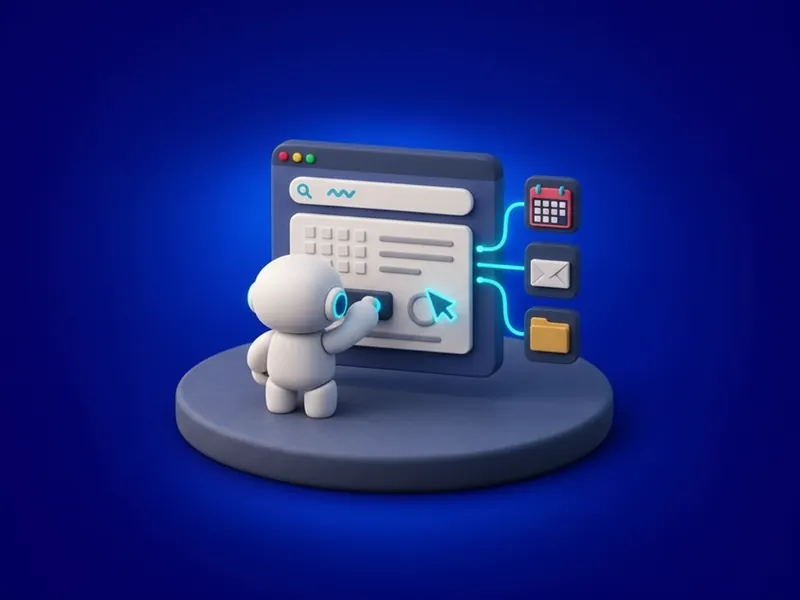
A small helper figure pressing a button on a web form, linked to calendar, mail and folder icons.
Agents

Automations and AI Agents

An agent is AI that doesn’t just answer, it takes the steps for you. Agents can work in a web browser or across your apps the way a person would.

  • Fill out forms and pull information from portals.
  • Move data from one system to another.
  • Watch a page and act when something changes.
  • Run a recurring report on a schedule.

Good to know: Agents act with your accounts. Give each one only the access it needs, and keep a person approving payments, emails and anything you can’t undo.

How clicrite helps: We set agent permissions, decide what each one may touch, and keep a record of what it did.

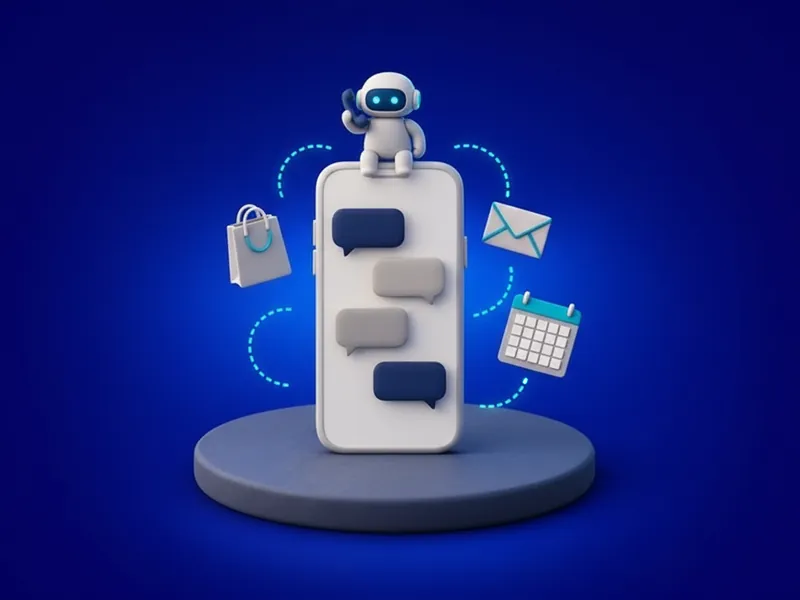
A phone showing a text conversation, with a small helper figure on top holding a phone handset, and a shopping bag, envelope and calendar around it.
Personal agents

Personal Agents That Work for You

The newest category: an assistant you text, email or call, that gets real-world jobs done. Book the appointment, call the vendor, order the part, keep an eye on your inbox.

  • You ask in plain language, the way you would ask a capable assistant.
  • It works in the background and reports back.
  • The good ones ask before they spend money or send anything in your name.

Good to know: Treat a personal agent like a new assistant with a key to your accounts: connect only what it needs, and keep business data on business accounts.

How clicrite helps: We help you decide which accounts an agent may connect to, and keep company data out of personal tools.

October 2026

AI Agents Available Right Now

The main agents you can use today, in their makers’ own terms.

Personal Agents

  • TabTab
    Personal agent you text

    An assistant you text in Messages. It has its own computer and browser, can make phone calls for you, and can place orders and bookings after showing you exactly what it will buy.

    Private betatab.bot (opens in a new tab)
  • InstinctInstinct
    Personal agent you text or call

    A personal assistant you text or call. It uses a phone and a computer the way you do, for jobs like ordering groceries or booking a train.

    instinct.com (opens in a new tab)
  • MuseMeta
    Personal agent

    Meta’s personal AI agent. It browses, completes tasks, makes purchases and creates documents, and checks with you before sensitive actions like sending an email. Muse for Small Business connects to Instagram, Facebook Pages and Meta ad accounts.

    Rolling out in the USai.meta.com/muse (opens in a new tab)
  • Claude DuetAnthropic
    Proactive personal agent

    A new app where Claude works as a proactive agent: a short morning brief from your connected apps, a message when something needs you, and tasks from scheduling meetings to building dashboards. It checks with you before acting for you.

    Research preview, by waitlistclaude.com (opens in a new tab)

Agents for Work

  • ChatGPT WorkOpenAI
    Work agent

    Hand ChatGPT a task with a clear outcome, such as a brief, deck, analysis or recurring update. It uses your files and approved tools, shows its progress and asks you to approve important actions. It replaced the earlier ChatGPT agent.

    chatgpt.com/work (opens in a new tab)
  • Claude CoworkAnthropic
    Work agent

    Claude does multi-step work with your files and apps, and with Dispatch you can message it from your phone while it keeps working on your computer.

    Paid Claude planssupport.claude.com (opens in a new tab)
  • Claude in ChromeAnthropic
    Browser agent

    Claude reads the page you are signed in to, then clicks, types and fills in forms while you decide what happens next.

    Paid Claude plansclaude.com (opens in a new tab)
  • Microsoft 365 CopilotMicrosoft
    Agents in Microsoft 365

    Copilot carries out multi-step work inside Word, Excel and PowerPoint, and Agent Builder lets you create your own agents without code. Agent 365 lets IT observe, govern and secure them.

    microsoft.com (opens in a new tab)
  • Gemini AgentGoogle
    Work agent

    Announced in October 2026: one agent for work that plans the task, connects to your business systems and brings back finished work inside Gmail, Docs, Sheets, Drive, Chat and Calendar.

    cloud.google.com (opens in a new tab)
  • CometPerplexity
    AI browser

    A web browser with a built-in assistant that researches, organizes your email and carries out browsing tasks, showing each step so you can step in at any time.

    perplexity.ai (opens in a new tab)

Names and availability checked on each company’s own site on October 25, 2026. These products change fast, and several are in preview or invite-only, so check the maker’s site for current plans.

How clicrite helps: Not sure which one fits? We test it with you on a real task first, on business accounts, with the right permissions in place.

A padlock and a shield with a check mark in front of a laptop showing a chat window, with a key beside them.
Important

Privacy and Security

A few rules, set before your team gets going, prevent the most common AI mistakes.

Keep Sensitive Data Out of Personal Accounts

Client records, health or financial details, passwords and confidential contracts don’t belong in a free or personal AI account. If you wouldn’t email it to a stranger, don’t paste it there.

Use Company Accounts, Not Personal Ones

Business plans keep the accounts, the chats and the files with the company. When someone leaves, their access leaves with them.

Check the Data Settings

Every assistant has settings for whether your chats can be used to train its models, how long history is kept, and what it remembers. Choose them on purpose, for everyone.

Microsoft 365 and Copilot: Fix Permissions First

Copilot can find anything a person already has access to. Clean up old shared folders, Teams and SharePoint sites, and use sensitivity labels, before you hand out licenses.

Agents Get the Least Access

Connect only the accounts an agent needs, keep approvals on for payments and emails, and review what it has done.

Write a One-Page AI Policy

Your team is probably using AI already. A short policy on what is allowed, which tools, and what never goes in prevents the serious mistakes.

Expect Better Scams

AI makes fake emails and even cloned voices more convincing. Confirm any change to payment details with a phone call to a number you already know.

How clicrite helps: We write your AI policy, set the data and retention settings, clean up permissions before Copilot goes live, and train your team.

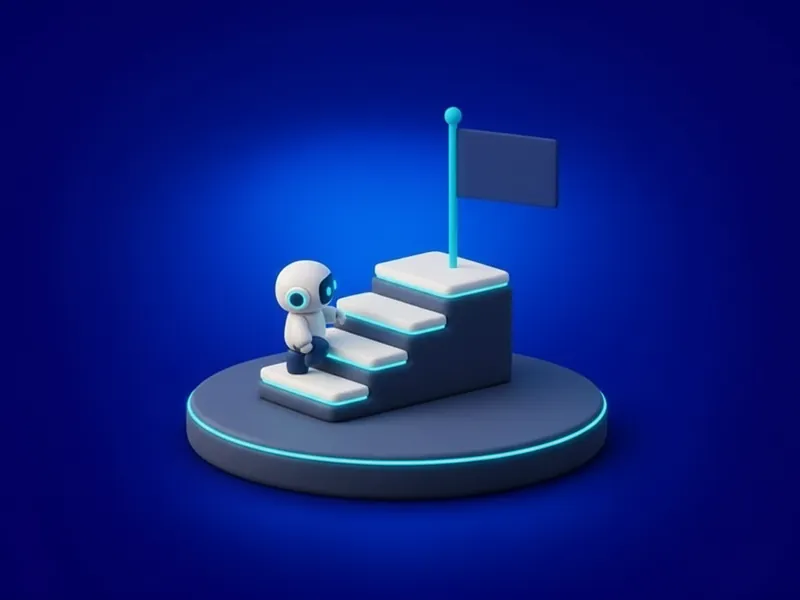
Three glowing steps rising to a flag, with a small helper figure climbing the first step.
A simple plan

How to Start

Three steps, in order. Start small, then build on what works.

  1. 1

    Pick One Assistant, on Company Accounts

    Match it to your software: Copilot if you run on Microsoft 365, Gemini if you run on Google Workspace. Set it up with business licenses and the right data settings.

  2. 2

    Choose Two or Three Everyday Jobs

    Meeting notes, email drafts and spreadsheet questions are the easy wins. Try them for a few weeks and keep what actually saves time.

  3. 3

    Write the Rules, Then Go Further

    Put your one-page policy in place. Then try an agent on a low-risk task, with approvals switched on.

How clicrite helps: We can do all three with you, starting with a free consultation.

Questions

Common Questions

Which AI assistant should my business use?

Usually the one that matches the software you already use: Microsoft Copilot for Microsoft 365, Google Gemini for Google Workspace. ChatGPT and Claude are strong general assistants either way. What matters most is that it runs on company accounts with the right settings.

Is it safe to put business information into AI?

On a business account with the right data settings, it is fine for most everyday work. Keep client records, financial and health details and passwords out of free or personal accounts, and follow your own industry rules.

What is an AI agent?

An AI that doesn’t just answer, but takes steps for you: filling in forms, moving information between apps, booking or ordering. Good agents ask before anything important, like spending money or sending an email in your name.

Do we need technical staff to use AI?

No. The everyday tools work in plain language. Where it helps to have IT involved is the setup: accounts, licenses, permissions, data settings and training.

Want to keep it? Download this guide as a PDF

Want help putting AI to work, safely?

Book a free consultation. No obligation, just insights. Or call us and talk it through.