Backups That Actually Restore: A Plain Guide for Small Businesses
Having a backup is not the same as getting your data back. What to back up (including Microsoft 365 and Google Workspace), the 3-2-1 rule, ransomware, and how to test a restore.
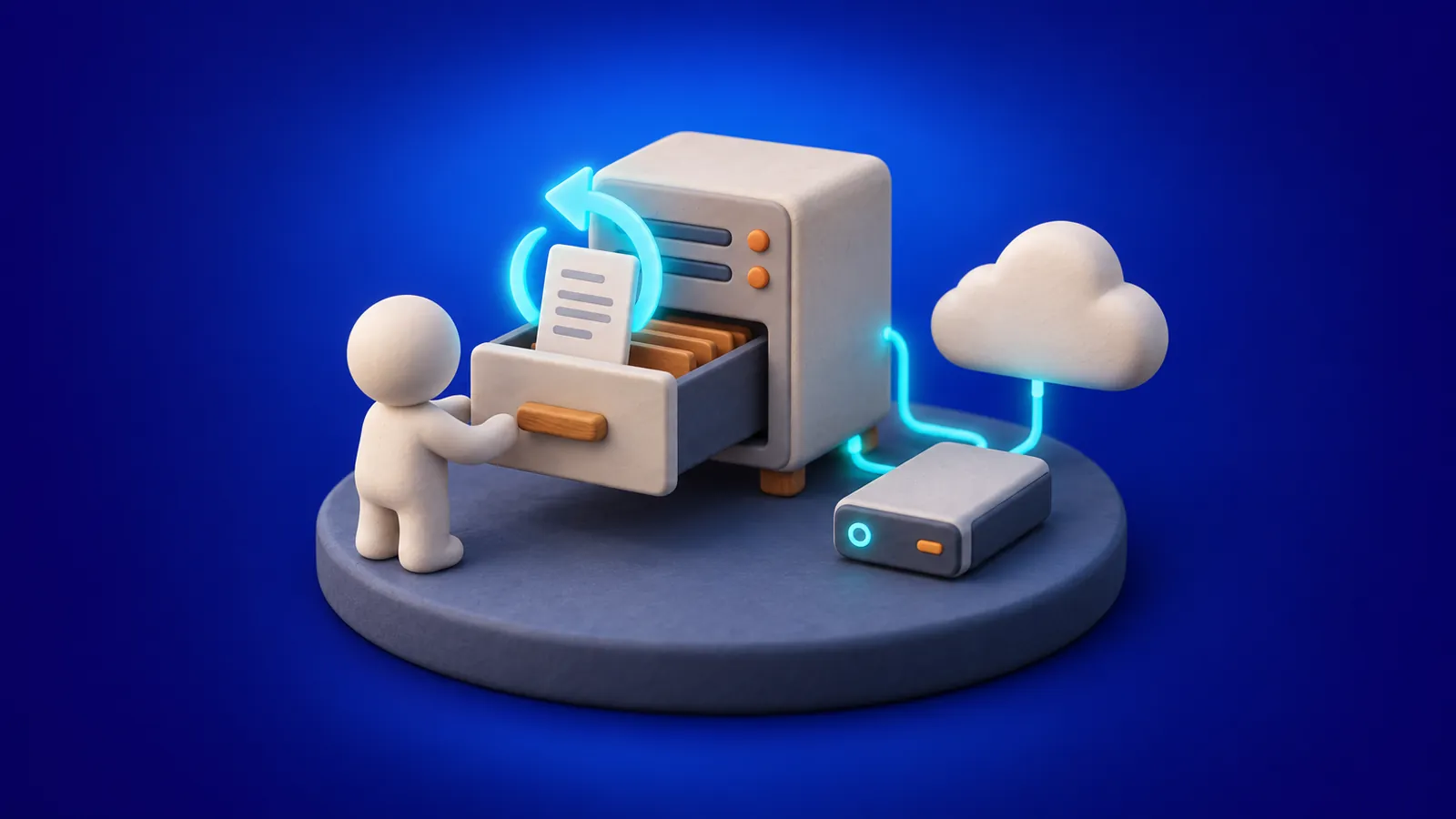
Most businesses have some kind of backup. Far fewer have ever tried to get something back from it. That gap is where bad days happen: the drive that quietly stopped syncing months ago, the backup that only copied one folder, the cloud account nobody thought needed protecting.
A backup is only worth what you can restore from it, on the day you need it, in a reasonable amount of time. Here is how to get there.
Start with what you would actually miss
Before choosing any product, list what your business cannot run without. For most small businesses, that list looks like this:
- Email and calendars Years of client conversations, attachments and agreements.
- Shared files Whether they live on a server in the closet, in SharePoint and OneDrive, or in Google Drive.
- Line-of-business software Accounting, practice management, CRM, scheduling. Some of it is cloud-hosted, some still runs on one office PC.
- Individual computers The files people keep on their desktop no matter how often you ask them not to.
- Settings you would hate to rebuild Firewall and router configuration, server setup, licensing details.
Then ask two questions for each item: how much work could we afford to lose (an hour, a day, a week), and how long could we be without it before it really hurts? The answers tell you how often to back up and how fast your restore needs to be.
Microsoft 365 and Google Workspace need backups too
This is the one that surprises people. Microsoft and Google keep their services running, but protecting your data from deletion, a compromised account or a departing employee is largely your job. Their built-in recycle bins and retention settings help, but deleted items only stay recoverable for a limited window, and they are not designed as a full backup you control.
A separate backup of mailboxes, OneDrive, SharePoint, Teams or Google Drive means you can bring back a single email, a folder from three months ago, or an entire account after someone leaves.
The 3-2-1 rule, in plain terms
It is old advice and still good advice:
- 3 copies of your data The original plus two backups.
- 2 different kinds of storage For example, a local backup device and a cloud service.
- 1 copy off-site Somewhere a fire, flood or break-in at the office cannot reach.
Many businesses now add one more rule: at least one copy that cannot be changed or deleted for a set period, even by an administrator. That is what protects you from ransomware.
Why ransomware changes the plan
Modern ransomware does not just lock your files. It looks for your backups first and tries to delete or encrypt them, often using an administrator account it has already stolen. A USB drive that is always plugged in, or a backup share every computer can write to, will usually be lost along with everything else.
- Keep backup systems on separate credentials, with multi-factor authentication turned on.
- Use immutable or offline copies that cannot be altered from the office network.
- Alert someone when backups fail or change size suddenly, so problems are noticed early.
Test restores on a schedule
A green "backup successful" message tells you a job ran. It does not tell you the data is complete or usable. The only real proof is a restore.
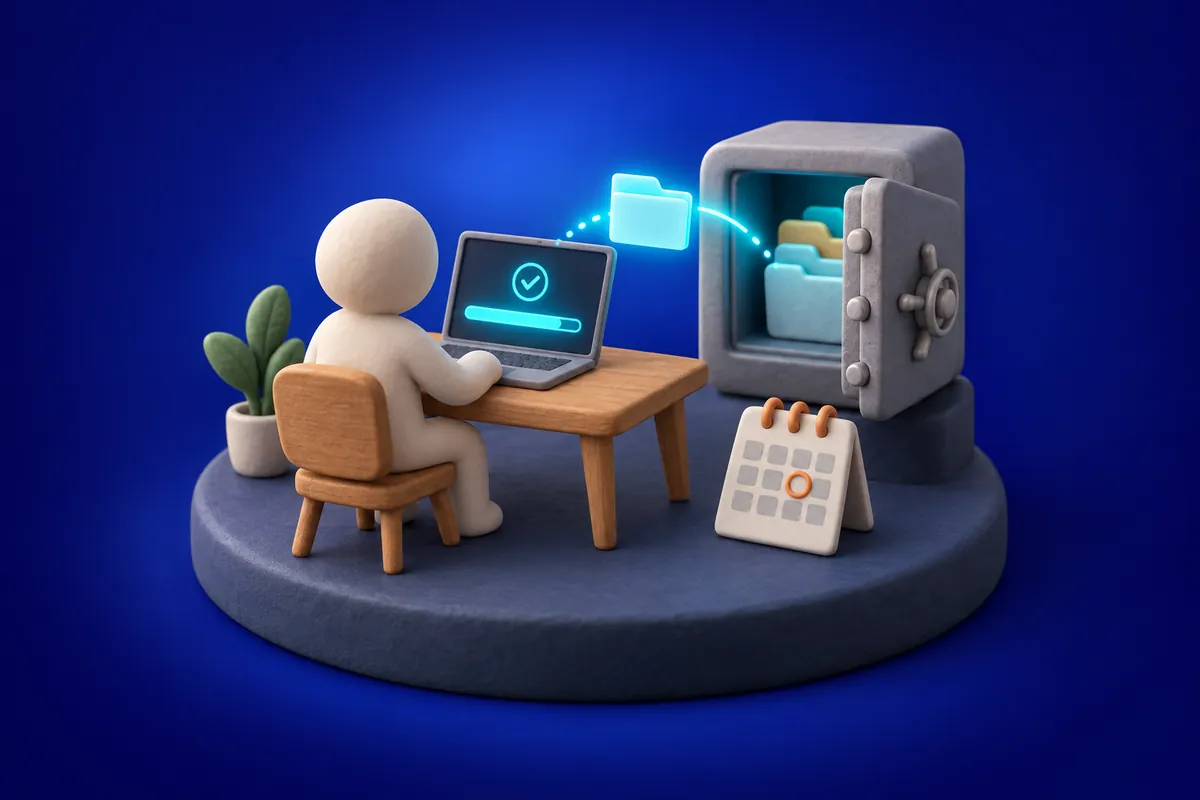
- Small restores, regularly Pick a random file, an email and a folder, restore them, and open them.
- A bigger test now and then Restore a whole computer, server or mailbox to a spare machine and confirm it works.
- Time it Note how long a full restore takes. If the answer is "longer than we could be down," change the plan before you need it.
- Write it down Keep short notes of what was tested, when, and what you found. It helps with insurance questionnaires and audits too.
Know who does what on a bad day
When something goes wrong, the worst time to figure out the process is during the emergency. Have a one-page plan that says who to call, where the backups are, which systems come back first, and who decides when to restore. Keep a copy somewhere other than the systems it describes.
If you are not sure your backups would hold up, ask us to run a test restore with you and see.